Table of Contents
- Before we start — please read this
- Tiny glossary (keep this handy)
- What you need (equipment)
- Step 0 — Install Python (do this once)
- Step 1 — Get your Live Tennis API key
- Step 2 — Make a project folder and two small files
- Step 3 — First win: list live matches
- Step 4 — Show scores in your browser (Flask)
- Step 5 — Optional: instant updates (Ultra plan)
- Everyday use — starting again tomorrow
- Ideas to personalise (when you are ready)
- What this project is (and is not)
- Hosted board vs this DIY project
- Next steps
Quick answer: You will install free Python on your PC, create a small project folder, save a secret API key, run one short script to list live matches, then run a second script so your browser shows a personal tennis scoreboard (formatted sets, games, points — not raw API lists). No coding experience required — copy, paste, and follow the steps in order. If you only want live scores next to Betfair today, skip the build and open our free tennis trader board instead.
Run it yourself: the Tennis Trader Board is open source — source on GitHub. It needs a Live Tennis API Ultra key (code botblog) for real-time push.
Disclosure: Links to Live Tennis API are affiliate links. We may earn a commission if you subscribe. Use our link or checkout code botblog for 10% off. Live Tennis API also gave BotBlog Ultra access for testing. The how-to steps are independent. Full disclosure.
You will need a paid API key before the scripts work. Skip Start free — that plan is 100 requests/day and a dashboard that refreshes every few seconds will burn it in minutes. Basic is the floor for this guide; Ultra if you want instant WebSocket updates in Step 5. Confirm the key in the browser before you install Python.
Subscribe to Basic or Ultra (10% off) →
Affiliate link — pick a paid plan, then type botblog at checkout. Disclosure
No-code key check (do this first): after you have a key, paste this into your browser address bar — replace YOUR_KEY with the real key — and press Enter:
https://api.livetennisapi.com/api/public/v1/scoreboard?token=YOUR_KEY
If you see a live scoreboard page, the key works. Most “Python is broken” failures are actually a bad or missing key — this check removes that trap before you write any code.
Optional: focus one match mid-trade by adding &match= and a match id (from the API or the scoreboard page):
https://api.livetennisapi.com/api/public/v1/scoreboard?token=YOUR_KEY&match=12345
Before we start — please read this
I’m Stephane. I run BotBlog and I’m a keen tennis player. I wrote this for people who have never built an app. If a word looks scary, we explain it the first time it appears.
This guide is for you if:
- You can download and install a program from a website
- You can create a folder and save a text file
- You are happy to copy code exactly (do not “improve” it until it works once)
This guide is not: betting tips, a tipster service, or a Betfair trading bot. For bots and licences later, see Betfair tennis trading bots — live scores & API cost.
Want live tennis scores without installing anything? We built a free hosted board on BotBlog — same Live Tennis API data, plus break-point alerts (15–40 / 0–40), ATP/WTA filters and optional P1 odds vs model win %. No API key, no Python.
Open the free Tennis Trader Board →
Then come back here when you want to build your own private scoreboard on your PC.
Expect about 45–90 minutes the first time (installs included). After that, starting the dashboard takes under a minute.
Tiny glossary (keep this handy)
| Word | Plain meaning |
| API | A way for your computer to ask a website for data (here: live tennis scores) |
| API key | Your private password for that service — never share it publicly |
| Terminal / PowerShell | A black/blue window where you type commands and press Enter |
Virtual environment (.venv) | A private toolbox for this project only, so Python packages do not mess up your PC |
pip | The tool that downloads Python packages (Flask, requests, …) |
| Flask | A package that shows a web page from your Python script |
127.0.0.1 / localhost | “This computer” — not the public internet |
What you need (equipment)
Computer
- A Windows 10/11 PC or laptop, or a Mac, or a normal Linux desktop
- About 4 GB RAM minimum (8 GB is more comfortable)
- About 500 MB free disk space
- Not a phone or tablet alone — you need a real desktop system for this tutorial
Browser
- Chrome, Edge, Firefox, or Safari (up to date)
- You will use it to open your dashboard and to sign up for the API
Internet
- Normal home Wi‑Fi or broadband is fine
- Scores are live — if Wi‑Fi drops, the board stops updating
Accounts / money
- A Live Tennis API subscription (code
botblog= 10% off) - Basic plan is enough for Steps 1–4 (dashboard that refreshes every few seconds)
- Ultra plan is needed only for the optional Step 5 (instant updates)
Step 0 — Install Python (do this once)
- Open your browser and go to python.org/downloads.
- Download the latest Python 3 installer for your system (3.11 or 3.12 is ideal).
- Windows — important: on the first installer screen, tick Add python.exe to PATH, then click Install Now.
- Finish the installer. If Windows offers “Disable path length limit”, you can accept it.
- Check it worked:
- Windows: press Win key, type
powershell, open Windows PowerShell - Mac: open Terminal from Spotlight
- Windows: press Win key, type
- Type this and press Enter:
On some Macs usepython --versionpython3 --version. - You should see something like
Python 3.12.x. If you see an error, restart the PC and try again, or reinstall with “Add to PATH” ticked.
Also install a simple editor if you want (optional but helpful): VS Code — or use Notepad on Windows / TextEdit on Mac.
Windows tip: In File Explorer → View → enable File name extensions so you can see .py and .txt endings. That stops you saving list_live.py.txt by mistake.
Step 1 — Get your Live Tennis API key
- In your browser, open this Live Tennis API link (keeps your 10% off).
- Or go to their site and enter code
botblogat checkout. - Create an account and choose a plan (Basic is fine to start).
- Copy your API key. It often looks like
twjp_followed by letters and numbers. - Paste it into Notepad temporarily if you need — but do not post it on social media, Discord, or GitHub.
Confirm the key still works (no coding): in the browser address bar, paste this and replace YOUR_KEY with your real key, then press Enter:
https://api.livetennisapi.com/api/public/v1/scoreboard?token=YOUR_KEY
Single match: add &match= plus the match id, e.g. ...&match=12345. If you see scores, your key is fine — keep going. Official docs (for later): docs.livetennisapi.com.
Step 2 — Make a project folder and two small files
- On your Desktop (or Documents), create a new folder named exactly:
tennis-dashboard - Open that folder.
- Create a new text file named exactly:
(Yes, it starts with a dot. On Windows Notepad: Save as → “All files” → name.env.env) - Put one line inside (paste your real key after the equals sign, no spaces):
LIVETENNISAPI_KEY=twjp_paste_your_real_key_here - Save and close.
- Create another file named exactly:
requirements.txt - Put these four lines inside (copy exactly):
flask>=3.0 python-dotenv>=1.0 websocket-client>=1.8 requests>=2.32 - Save and close.
Create the private toolbox (virtual environment)
A virtual environment is a folder named .venv that holds Python packages for this project only.
Next you will use a terminal (on Windows that is usually PowerShell). A terminal is a text window where you type a command and press Enter — it is not Notepad and not your web browser.
How to open a terminal in your project folder (Windows)
Pick one method — Method A is the easiest.
Method A — from File Explorer (recommended)
- Open File Explorer (yellow folder icon on the taskbar).
- Go into your
tennis-dashboardfolder so you can see.envandrequirements.txtinside it. - Click once in the address bar at the top (where the folder path is shown) so the path text becomes highlighted.
- Type exactly:
then press Enter.powershell - A blue or black window opens. That is your terminal. It should already be “inside”
tennis-dashboard.
Method B — right‑click menu
- In File Explorer, open
tennis-dashboard. - Hold Shift and right‑click on empty space in the folder (not on a file).
- Click Open PowerShell window here or Open in Terminal.
Method C — start PowerShell first, then move into the folder
- Press the Windows key, type
powershell, open Windows PowerShell. - Type a
cdcommand to move into your folder, then press Enter. Examples (pick the one that matches where you put the folder):
orcd Desktop\tennis-dashboard
or a full path, for example:cd Documents\tennis-dashboard
Replacecd C:\Users\YourName\Desktop\tennis-dashboardYourNamewith your Windows user name.
Check you are in the right place — type this and press Enter:
dir
You should see .env and requirements.txt in the list. If you do not, you are in the wrong folder — use cd again until dir shows those files.
What “run” means from here: click in the terminal window so it is active, type the command carefully, then press Enter. Wait for it to finish before typing the next one. You can copy commands from this page and paste into PowerShell with right‑click → Paste (or Ctrl+V).
Commands to type (Windows) — one at a time
- Create the toolbox folder:
Press Enter and wait (10–60 seconds). When the prompt comes back, a new folder namedpython -m venv .venv.venvappears in File Explorer. Ifpythonfails, try:py -m venv .venv - Turn the toolbox on (do this every time you open a new terminal for this project):
.venv\Scripts\activate - Check the start of the line now shows
(.venv). That means it worked. - If Windows says scripts are disabled, run this once, press Enter, then run the activate command again:
Set-ExecutionPolicy -Scope CurrentUser RemoteSigned - Download the Python packages (needs internet — may take a minute):
Wait until you see messages about packages being successfully installed and your prompt comes back.pip install -r requirements.txt
Mac — open Terminal in the folder
- Open Terminal (press Cmd+Space, type
Terminal, press Enter). - Move into your folder, for example:
cd ~/Desktop/tennis-dashboard - Check with:
You should seels.envandrequirements.txt. - Then run these one at a time:
python3 -m venv .venv
source .venv/bin/activate
pip install -r requirements.txt
When source .venv/bin/activate works, the line starts with (.venv) — same idea as Windows.
Your folder should now contain at least: .env, requirements.txt, and .venv.
Step 3 — First win: list live matches
We will create a small program that asks Live Tennis API: “Which matches are live right now?” and prints the names in the terminal.
- In
tennis-dashboard, create a new file named exactly:list_live.py - Open it and paste all of this code (do not skip lines):
import os
import requests
from dotenv import load_dotenv

load_dotenv()
KEY = os.environ["LIVETENNISAPI_KEY"]
URL = "https://api.livetennisapi.com/api/public/v1/matches"
HEADERS = {
    "Authorization": f"Bearer {KEY}",
    "User-Agent": "TennisDashboardTutorial/1.0",
}

r = requests.get(URL, params={"status": "live"}, headers=HEADERS, timeout=30)
r.raise_for_status()
matches = r.json().get("data") or []

print(f"Live matches: {len(matches)}\n")
for m in matches[:15]:
    p1 = (m.get("players") or {}).get("p1", {}).get("name", "?")
    p2 = (m.get("players") or {}).get("p2", {}).get("name", "?")
    print(f"{m.get('id')}: {p1} vs {p2} ({m.get('format')})")
- Save the file.
How to run it (Windows)
- Open PowerShell in the tennis-dashboard folder (address bar → type
powershell→ Enter). - Activate the toolbox:
You must see.venv\Scripts\activate(.venv). - Type this exactly and press Enter:
There is a space betweenpython list_live.pypythonandlist_live.py. - If Windows says
pythonis not recognised, try:py list_live.py
Do not paste python list_live.py into Chrome’s address bar. That only works for website addresses.
How to run it (Mac)
- Open Terminal.
cd ~/Desktop/tennis-dashboard(change the path if your folder is elsewhere).source .venv/bin/activatepython list_live.pyorpython3 list_live.py
What “it worked” looks like
Live matches: 24

20978: Player A vs Player B (BO3)
21201: Player C vs Player D (BO3)
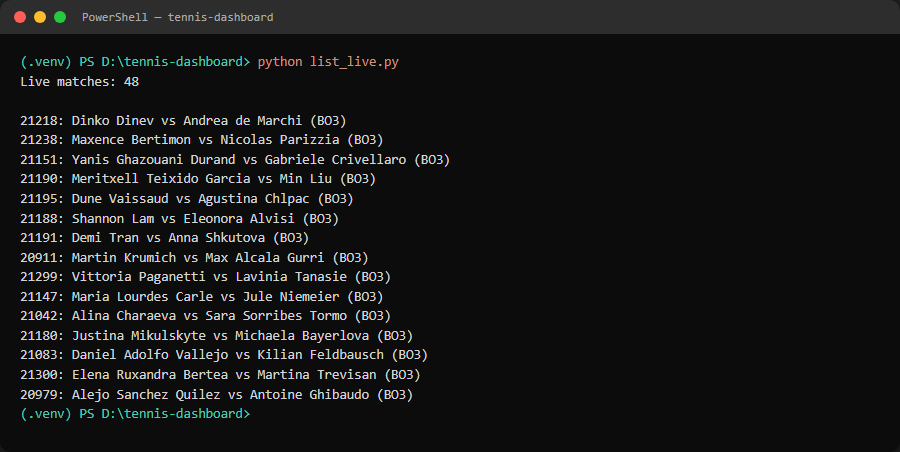
python list_live.py — live match IDs and player names from the live scores API.The script then stops by itself. That is normal.
| If you see this | Do this |
can't open file 'list_live.py' | You are in the wrong folder — open PowerShell from inside tennis-dashboard |
No module named 'requests' | Activate .venv, then run pip install -r requirements.txt again |
KeyError: 'LIVETENNISAPI_KEY' | Check .env is in the same folder and the line spelling is exact |
401 error | Wrong API key — copy it again from your Live Tennis account |
Live matches: 0 | The script worked — there may simply be no live matches right now. Try later in the day |
When you see player names, you have successfully used a live scores API. Take a breath — the hard part of “first contact” is done.
Need a paid key before this step works? Skip the free plan — Basic is enough here; Ultra if you want Step 5 (WebSocket).
Step 4 — Show scores in your browser (Flask)
What Flask is
Flask is a free add-on for Python. It does not appear in the Windows Start menu as its own program. You already installed it with pip in Step 2.
When you run our next file, Flask starts a tiny website only on your PC. Your browser opens it like any other page.
- Official docs (optional reading): flask.palletsprojects.com
- Package page: pypi.org/project/Flask
Quick check (with (.venv) active):
python -c "import flask; print(flask.__version__)"
You should see a version number. If not, run pip install flask and try again.
Why raw API lists look ugly (and how we fix that)
Before you paste the big file, it helps to know why we do not dump the API numbers straight onto the page.
What the live scores API actually returns
When your script asks for one match score, Live Tennis API answers with JSON — structured data, not a pretty TV graphic. A real example looks like this:
{
  "sets": [1, 0],
  "games": [[7, 2], [5, 2]],
  "points": ["0", "30"],
  "server": 2
}
| Field | Meaning | Plain English |
sets | [1, 0] | Player 1 has won 1 set, player 2 has won 0 |
games | [[7, 2], [5, 2]] | First set finished 7–2; current set is 5–2 |
points | ["0", "30"] | Current game: 0–30 (tennis point labels, not always numbers) |
server | 1, 2, or null | Who is serving — or unknown |
If you print those lists in the browser as-is, you get ugly text like [1, 0] and ['40', 'AD']. That is honest data — but it is not a scoreboard. So we add small helper functions that turn lists into separate columns per player.
How the formatting helpers work (read this once)
pair_or_dash(values, index)— Sets and points arrive as a two-item list: index0is player 1, index1is player 2. This helper safely picks one side. If the list is missing or short, it shows an em dash (—) instead of crashing.games_by_set(games)— Games are trickier. Sometimes the API sends[[7, 2], [5, 2]](one[p1, p2]pair per set). Sometimes it sends something like[[3], [2]](player 1’s games list and player 2’s games list). The function detects which shape it got and always returns a clean list of pairs such as[(7, 2), (5, 2)].format_match_score(...)— Builds one scoreboard “card”:- Sets won →
sets_p1/sets_p2 - Current games → last pair in the games list
- Points →
points_p1/points_p2(keeps labels likeAD) - Set history line → joins every set as
7–2 · 5–2 - Server number stays as
1or2so the HTML can show a yellow serve dot and a “serving” badge on the right row
- Sets won →
- The HTML template — Each match is a card with two rows (one per player), like a TV scoreboard. CSS lines up Sets / Games / Points in columns. The page auto-refreshes about every 8 seconds using
<meta http-equiv="refresh" content="8"/>. - Faster loading — We only show 12 live matches, and
ThreadPoolExecutorasks for several match scores at the same time (instead of one-after-another). That is why the first paint is usually a few seconds, not half a minute.
You do not need to invent this from scratch. Copy the full app.py below. After it works, re-read the helpers above and you will recognise each piece.
Create app.py
- In
tennis-dashboard, createapp.py. - Paste everything below and save (it is long on purpose — helpers + HTML + Flask in one file):
import os
from concurrent.futures import ThreadPoolExecutor, as_completed

import requests
from dotenv import load_dotenv
from flask import Flask, render_template_string

load_dotenv()
KEY = os.environ["LIVETENNISAPI_KEY"]
API = "https://api.livetennisapi.com/api/public/v1"
HEADERS = {
    "Authorization": f"Bearer {KEY}",
    "User-Agent": "TennisDashboardTutorial/1.0",
}

app = Flask(__name__)

PAGE = """
<!doctype html>
<html lang="en">
<head>
  <meta charset="utf-8"/>
  <meta http-equiv="refresh" content="8"/>
  <title>My Live Tennis Dashboard</title>
  <style>
    :root {
      --bg: #0b1220;
      --panel: #121a2b;
      --line: #243147;
      --text: #e8eef7;
      --muted: #8fa0b8;
      --accent: #3dd68c;
      --serve: #f5c542;
    }
    * { box-sizing: border-box; }
    body {
      margin: 0;
      font-family: "Segoe UI", Tahoma, sans-serif;
      background: radial-gradient(1200px 600px at 20% -10%, #1a2740, var(--bg));
      color: var(--text);
      padding: 1.5rem;
    }
    h1 { margin: 0 0 0.35rem; font-size: 1.75rem; font-weight: 650; letter-spacing: -0.02em; }
    .meta { color: var(--muted); margin: 0 0 1.25rem; }
    .board { display: grid; gap: 0.75rem; max-width: 820px; }
    .match {
      background: var(--panel);
      border: 1px solid var(--line);
      border-radius: 10px;
      padding: 0.85rem 1rem;
    }
    .cols, .row {
      display: grid;
      grid-template-columns: 1fr 52px 64px 72px 56px;
      gap: 0.35rem;
      align-items: center;
    }
    .cols {
      font-size: 0.78rem;
      color: var(--muted);
      text-transform: uppercase;
      letter-spacing: 0.04em;
      margin-bottom: 0.35rem;
    }
    .row { padding: 0.28rem 0; }
    .row + .row { border-top: 1px solid var(--line); }
    .name { font-size: 1rem; font-weight: 600; }
    .score {
      font-variant-numeric: tabular-nums;
      font-family: Consolas, "Courier New", monospace;
      font-size: 1.05rem;
      text-align: center;
    }
    .history { color: var(--muted); font-size: 0.8rem; margin-top: 0.45rem; }
    .serve-dot {
      width: 10px; height: 10px; border-radius: 50%;
      background: var(--serve); display: inline-block;
      box-shadow: 0 0 0 3px rgba(245, 197, 66, 0.2);
    }
    .serve-empty { text-align: center; }
    .badge {
      display: inline-block;
      margin-left: 0.4rem;
      font-size: 0.7rem;
      color: var(--accent);
      border: 1px solid rgba(61, 214, 140, 0.35);
      border-radius: 999px;
      padding: 0.1rem 0.45rem;
      vertical-align: middle;
    }
  </style>
</head>
<body>
  <h1>Live tennis scores</h1>
  <p class="meta">Personal scoreboard · auto-refresh every 8s · {{ count }} matches</p>
  <div class="board">
  {% for row in rows %}
    <div class="match">
      <div class="cols">
        <div>Players</div><div>Sets</div><div>Games</div><div>Points</div><div>Serve</div>
      </div>
      <div class="row">
        <div class="name">{{ row.p1 }}{% if row.server == 1 %}<span class="badge">serving</span>{% endif %}</div>
        <div class="score">{{ row.sets_p1 }}</div>
        <div class="score">{{ row.games_p1 }}</div>
        <div class="score">{{ row.points_p1 }}</div>
        <div class="serve-empty">{% if row.server == 1 %}<span class="serve-dot" title="Serving"></span>{% endif %}</div>
      </div>
      <div class="row">
        <div class="name">{{ row.p2 }}{% if row.server == 2 %}<span class="badge">serving</span>{% endif %}</div>
        <div class="score">{{ row.sets_p2 }}</div>
        <div class="score">{{ row.games_p2 }}</div>
        <div class="score">{{ row.points_p2 }}</div>
        <div class="serve-empty">{% if row.server == 2 %}<span class="serve-dot" title="Serving"></span>{% endif %}</div>
      </div>
      {% if row.set_history %}
      <div class="history">Completed / in-progress sets: {{ row.set_history }}</div>
      {% endif %}
    </div>
  {% endfor %}
  </div>
</body>
</html>
"""


def pair_or_dash(values, index):
    """Take one side of a [p1, p2] list; show — if missing."""
    if not isinstance(values, (list, tuple)) or len(values) <= index:
        return "—"
    value = values[index]
    return "—" if value is None else str(value)


def games_by_set(games):
    """
    Turn the API games field into a list of (p1, p2) per set.

    Live Tennis API usually sends either:
      [[7, 2], [5, 2]]  → one [p1, p2] pair per set
      [[3], [2]]        → p1 games list + p2 games list (zip them)
    """
    if not games or not isinstance(games, list):
        return []

    # Case A: list of sets, each set is [p1_games, p2_games]
    if all(isinstance(g, (list, tuple)) and len(g) == 2 for g in games):
        return [(g[0], g[1]) for g in games]

    # Case B: [p1_games_per_set, p2_games_per_set]
    if (
        len(games) >= 2
        and isinstance(games[0], (list, tuple))
        and isinstance(games[1], (list, tuple))
    ):
        p1, p2 = games[0], games[1]
        n = max(len(p1), len(p2))
        out = []
        for i in range(n):
            a = p1[i] if i < len(p1) else 0
            b = p2[i] if i < len(p2) else 0
            out.append((a, b))
        return out

    return []


def format_match_score(score, p1_name, p2_name):
    """Convert raw score JSON into scoreboard fields."""
    sets = score.get("sets") or []
    points = score.get("points") or []
    server = score.get("server")
    pairs = games_by_set(score.get("games"))

    if pairs:
        games_p1, games_p2 = pairs[-1]
        set_history = " · ".join(f"{a}–{b}" for a, b in pairs)
    else:
        games_p1 = games_p2 = "—"
        set_history = ""

    return {
        "p1": p1_name,
        "p2": p2_name,
        "sets_p1": pair_or_dash(sets, 0),
        "sets_p2": pair_or_dash(sets, 1),
        "games_p1": games_p1 if games_p1 == "—" else str(games_p1),
        "games_p2": games_p2 if games_p2 == "—" else str(games_p2),
        "points_p1": pair_or_dash(points, 0),
        "points_p2": pair_or_dash(points, 1),
        "server": server,
        "set_history": set_history,
    }


def score_for_match(m):
    mid = m["id"]
    p1 = (m.get("players") or {}).get("p1", {}).get("name", "?")
    p2 = (m.get("players") or {}).get("p2", {}).get("name", "?")
    try:
        s = requests.get(f"{API}/matches/{mid}/score", headers=HEADERS, timeout=20).json()
    except Exception:
        s = {}
    return format_match_score(s, p1, p2)


def fetch_rows():
    r = requests.get(f"{API}/matches", params={"status": "live"}, headers=HEADERS, timeout=30)
    r.raise_for_status()
    matches = r.json().get("data") or []
    selected = matches[:12]
    rows = [None] * len(selected)
    # Ask for several scores at the same time so the page loads faster
    with ThreadPoolExecutor(max_workers=6) as pool:
        futures = {pool.submit(score_for_match, m): i for i, m in enumerate(selected)}
        for fut in as_completed(futures):
            rows[futures[fut]] = fut.result()
    return rows


@app.get("/")
def home():
    rows = fetch_rows()
    return render_template_string(PAGE, rows=rows, count=len(rows))


if __name__ == "__main__":
    app.run(debug=True, port=5055)
How to start the dashboard
- PowerShell in
tennis-dashboardwith(.venv)active. - Run:
python app.py - Leave this window open. Unlike Step 3, this program keeps running on purpose.
- You should see a line like:
* Running on http://127.0.0.1:5055 - Open Chrome/Edge/Firefox and click the address bar. Type exactly:
orhttp://127.0.0.1:5055/
then press Enter.http://localhost:5055/ - First load can take a few seconds while scores are fetched. Then you should see scoreboard cards. The page reloads about every 8 seconds by itself.
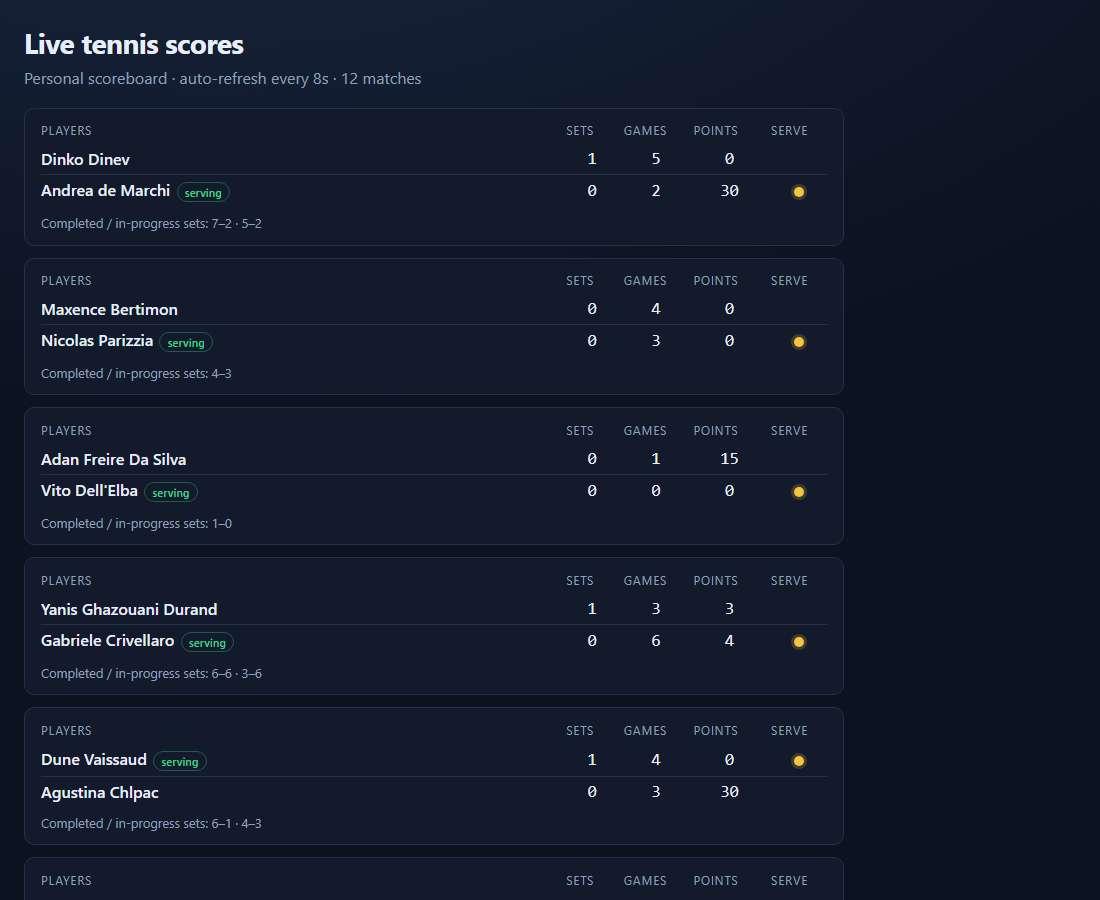
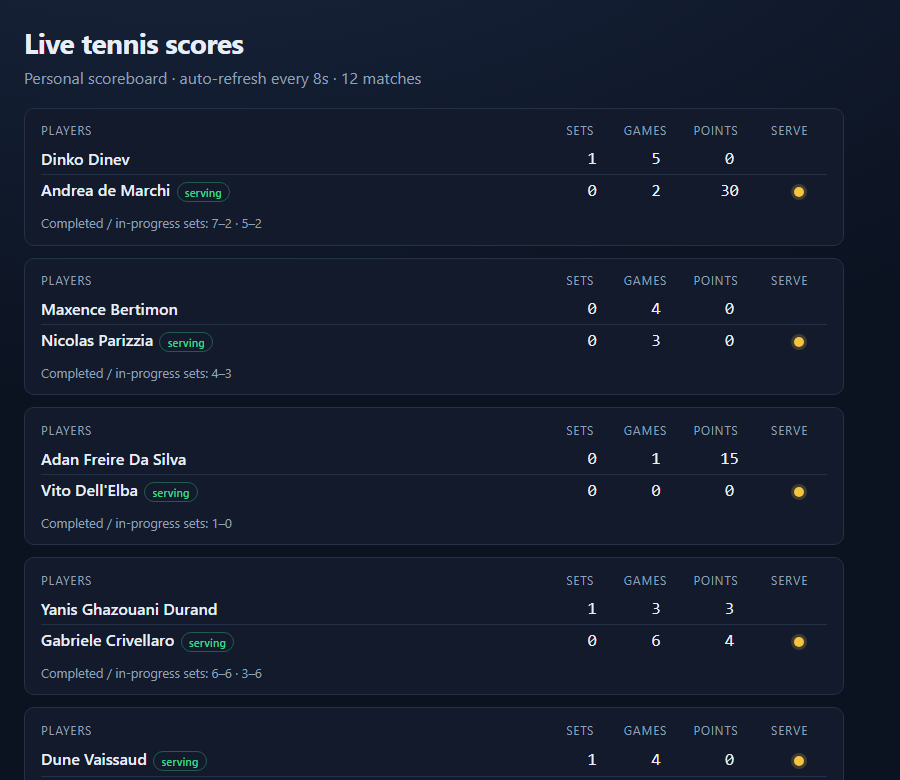
http://127.0.0.1:5055/ — human-readable sets, games, points, and who is serving.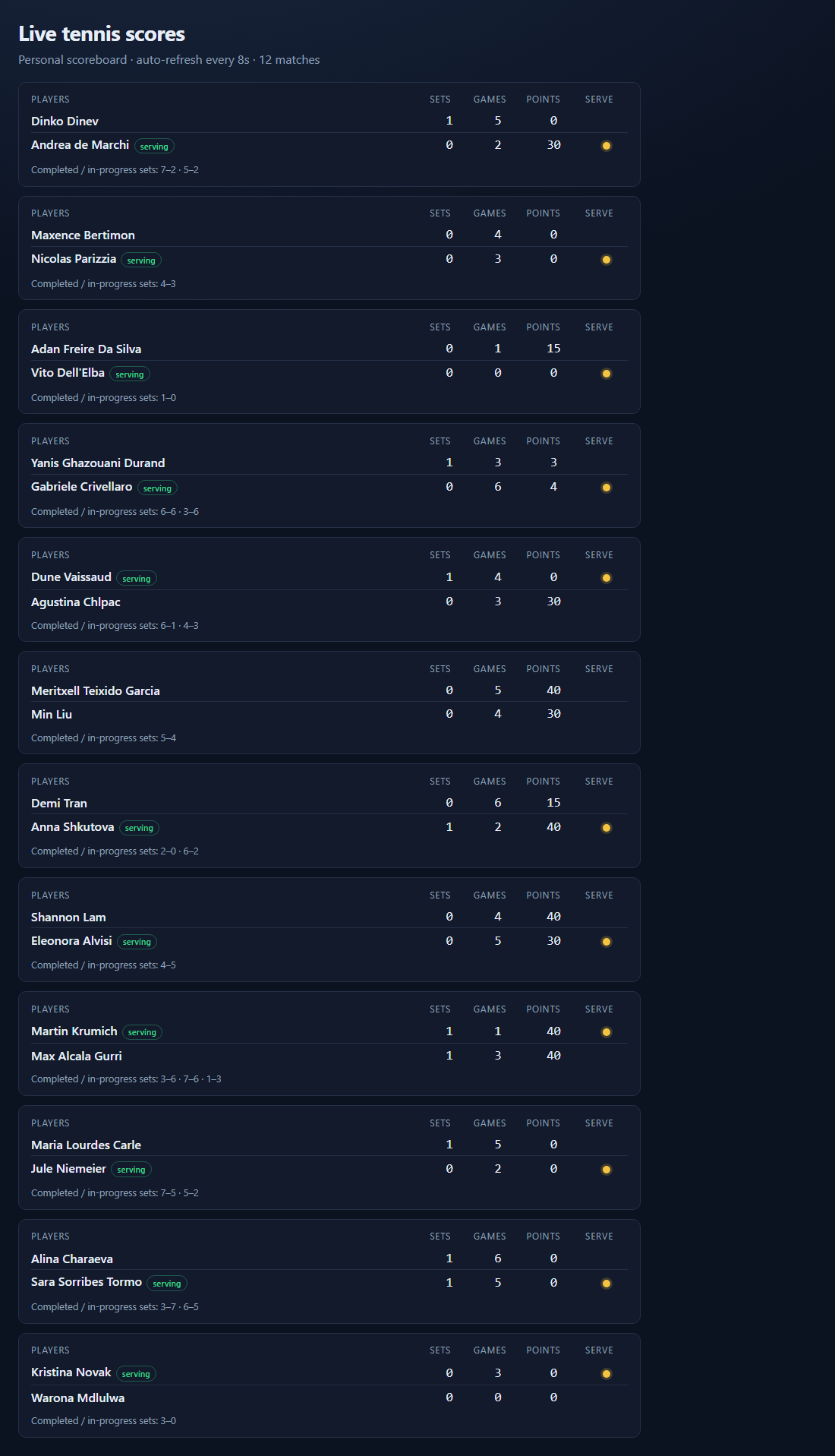
If Windows Firewall asks about Python, choose Allow on private networks.
To stop: click the PowerShell window and press Ctrl+C. Then the web page will stop loading until you run python app.py again.
| Problem | Fix |
| Browser cannot connect | Is PowerShell still showing “Running on…”? Did you use port 5055? |
| Address already in use | An old Flask is still running — press Ctrl+C in that window, or change port=5055 to port=5056 in app.py and open that URL |
| Blank / old page | Hard refresh: Ctrl+F5 |
Ugly lists like [1, 0] | You are on an older app.py — paste the full scoreboard version again |
No module named 'flask' | Activate .venv, then pip install flask |
You now have a personal live tennis scoreboard on your own computer — not just raw API text. That is the main goal of this guide.
Step 5 — Optional: instant updates (Ultra plan)
Skip this until Steps 1–4 work.
The dashboard above asks for scores every few seconds. Fine for learning. If you want updates the moment a point is played, Live Tennis API’s Ultra plan includes a live stream (called a WebSocket).
Upgrade or subscribe to Ultra (10% off), then:
- Create
ws_listen.pyin the same folder. - Paste this and save:
import json
import os
import websocket
from dotenv import load_dotenv

load_dotenv()
KEY = os.environ["LIVETENNISAPI_KEY"]
URL = f"wss://api.livetennisapi.com/api/public/v1/ws?token={KEY}"

def on_open(ws):
    print("Connected — waiting for live scores…")
    ws.send(json.dumps({"topics": ["live-scores"]}))

def on_message(ws, message):
    msg = json.loads(message)
    if msg.get("type") == "subscribed":
        print("Subscribed OK")
        return
    if msg.get("type") == "score":
        s = msg.get("score") or {}
        print(
            "match", msg.get("match_id"),
            "sets", s.get("sets"),
            "games", s.get("games"),
            "points", s.get("points"),
            "server", s.get("server"),
        )

websocket.WebSocketApp(URL, on_open=on_open, on_message=on_message).run_forever()
- With
(.venv)active, run:python ws_listen.py - Leave it running during live matches. New lines should appear when points are played.
- Stop with Ctrl+C.
Wiring that stream into the Flask page is a good “next project” once you are comfortable. For trading research with Matchbook prices, see our tennis bots guide.
Everyday use — starting again tomorrow
- Open PowerShell in
tennis-dashboard .venv\Scripts\activatepython app.py- Browser →
http://127.0.0.1:5055/
That is the whole daily routine.
Ideas to personalise (when you are ready)
- Watch only matches with a favourite player’s name
- Change colours in the HTML style section
- Run it on a second screen while you practise tennis
- Compare your DIY board with our hosted Tennis Trader Board (alerts + model % already built in)
Keep the board private on your PC. Putting the live feed on a public website may break the vendor’s rules — read their terms first. (The BotBlog trader board is our hosted product under our own Live Tennis API subscription — that is different from republishing your key.)
What this project is (and is not)
- Is: a beginner-friendly personal tennis scoreboard
- Is: practice using an API key and Python on your own machine
- Is not: financial advice or betting tips
- Is not: a phone app from an app store
- Is not required if you only need a free scoreboard — use the Tennis Trader Board for that
Hosted board vs this DIY project
| Tennis Trader Board | This DIY guide | |
| Cost to watch scores | Free on BotBlog | Needs your own Live Tennis API key |
| Setup | Open the page | ~45–90 minutes first time |
| Break-point alerts / filters | Built in (15–40, surface, ATP/WTA…) | You add them yourself later |
| Best for | Trading next to Betfair today | Learning APIs / a private scoreboard you control |
Next steps
- Try the free Tennis Trader Board so you know what “good” live scores look like
- Get your API key (code
botblog) if you want your own board - Finish Steps 0–4
- Try Step 5 if you want Ultra / instant updates
- Later: board filters & alerts guide · Telegram 0–40 / 15–40 alerts · break-point trading playbook · audit 15–40 hold rates · scores vs exchange prices · BF Bot Manager tennis · 15–40 strategy
Start here — Live Tennis API key (10% off) →
Affiliate link — code botblog. Disclosure
Automate this with BF Bot Manager
Betfair-certified automation — Lay the Draw, horse racing, dutching, goals markets and more. No coding. From £29.95/month or £119.95/year after a 7-day free trial.
Affiliate link — we may earn a commission at no extra cost to you. Full disclosure
Run bots 24/7 on a VPS
Low-latency hosting keeps BF Bot Manager and other software online when your PC is off. See our VPS guide for setup notes.
Affiliate link — we may earn a commission at no extra cost to you. Full disclosure